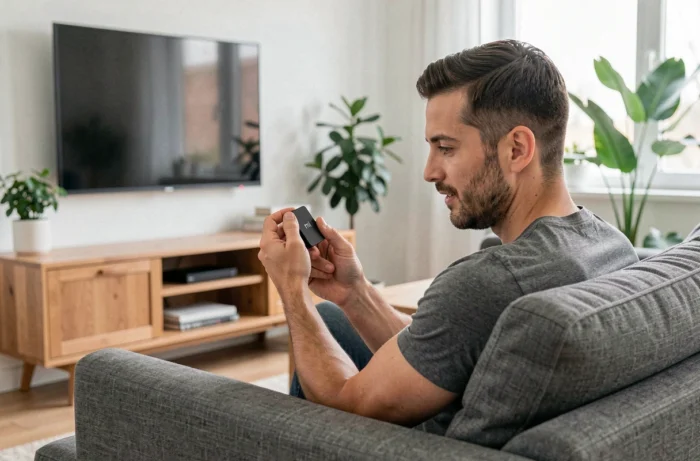
The Xiaomi Mi TV Stick transforms a classic television into a connected interface running Android TV. However, this HDMI stick does not receive digital terrestrial television (DTT) by itself: it does not include any terrestrial tuner. To access free channels, everything goes through applications installed via the Google Play Store and a Wi-Fi connection.
Why the Mi TV Stick does not receive DTT on its own
You plug in the stick, launch the interface, and look for your usual channels. Nothing appears. This is normal: the Mi TV Stick does not contain a DTT receiver.
Traditional DTT relies on a terrestrial signal captured by an antenna, then decoded by a tuner integrated into the television or a dedicated decoder. The Mi TV Stick, on the other hand, works solely via the Internet. It connects via Wi-Fi to your router, then provides access to the Android TV application catalog.
This distinction is rarely explained in competing guides. You are suggested to install Molotov or another application without specifying that you are using your home Internet network, not terrestrial waves. Therefore, the quality of your Wi-Fi connection directly affects the smoothness of the image and the availability of channels. If you want to watch DTT with the Mi TV Stick, you need to understand that the stick replaces the antenna with your Internet access.
Android TV Applications to Watch Free DTT Channels
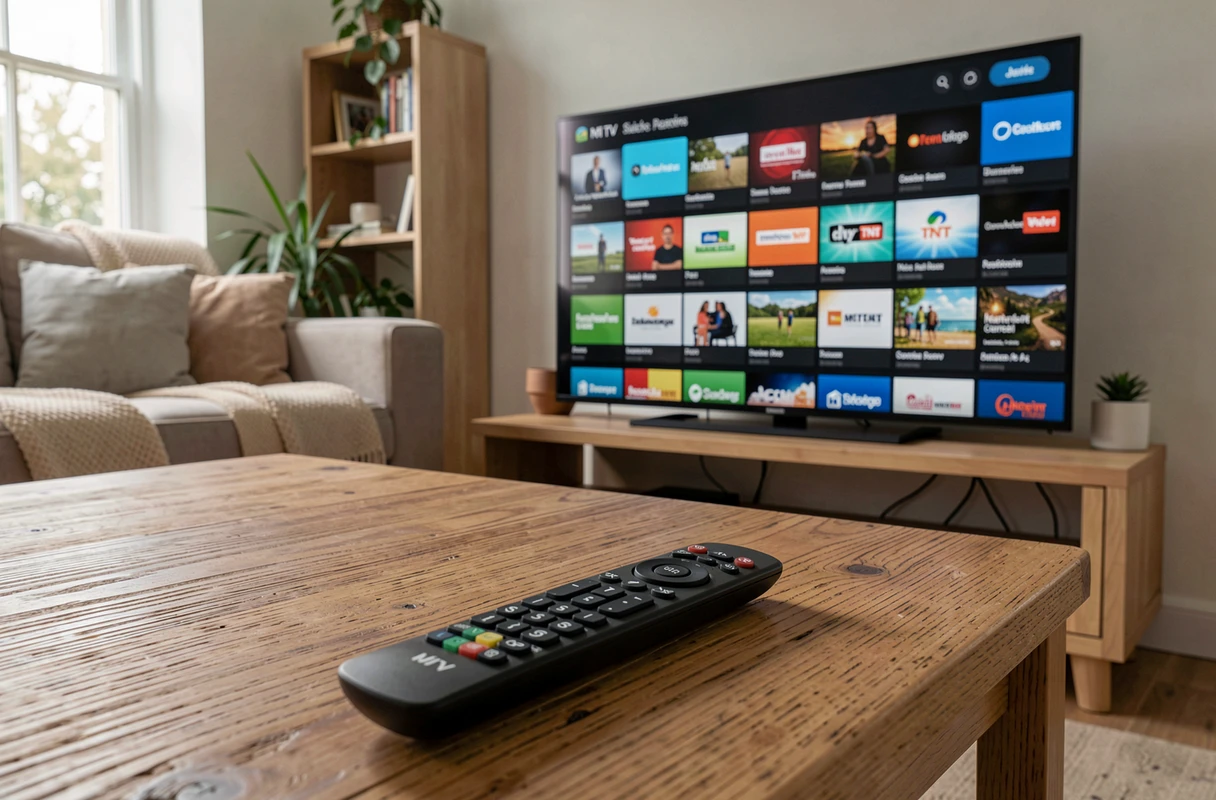
The Google Play Store on the Mi TV Stick offers several applications capable of streaming DTT channels live. They all operate on the same principle: they retrieve the video stream via the Internet and display it on your television.
Molotov TV: The Most Common Solution
Molotov remains the most cited application for accessing DTT channels without an antenna. It offers a bouquet of free channels upon account creation. The interface is designed for navigation with a remote control, making it suitable for the Mi TV Stick.
One point to keep in mind: some channels or features (like rewinding a currently airing program) may require a paid subscription. The free version covers the main channels, but not the entire DTT bouquet.
France.tv and Other Channel Applications
The France.tv application provides access to programs from the France Télévisions group channels live and on replay. Other groups offer their own applications on the Play Store: MyCanal for Canal+ channels, or specific applications like Arte.
Each application covers a limited range of channels. To recreate the equivalent of a complete DTT bouquet, you often need to install several. Molotov has the advantage of grouping a large number of channels in a single interface.
Installation and Configuration on the Mi TV Stick
Getting started requires a few simple steps. If you already have a Google account (the one used on an Android phone, for example), the setup will be quick.
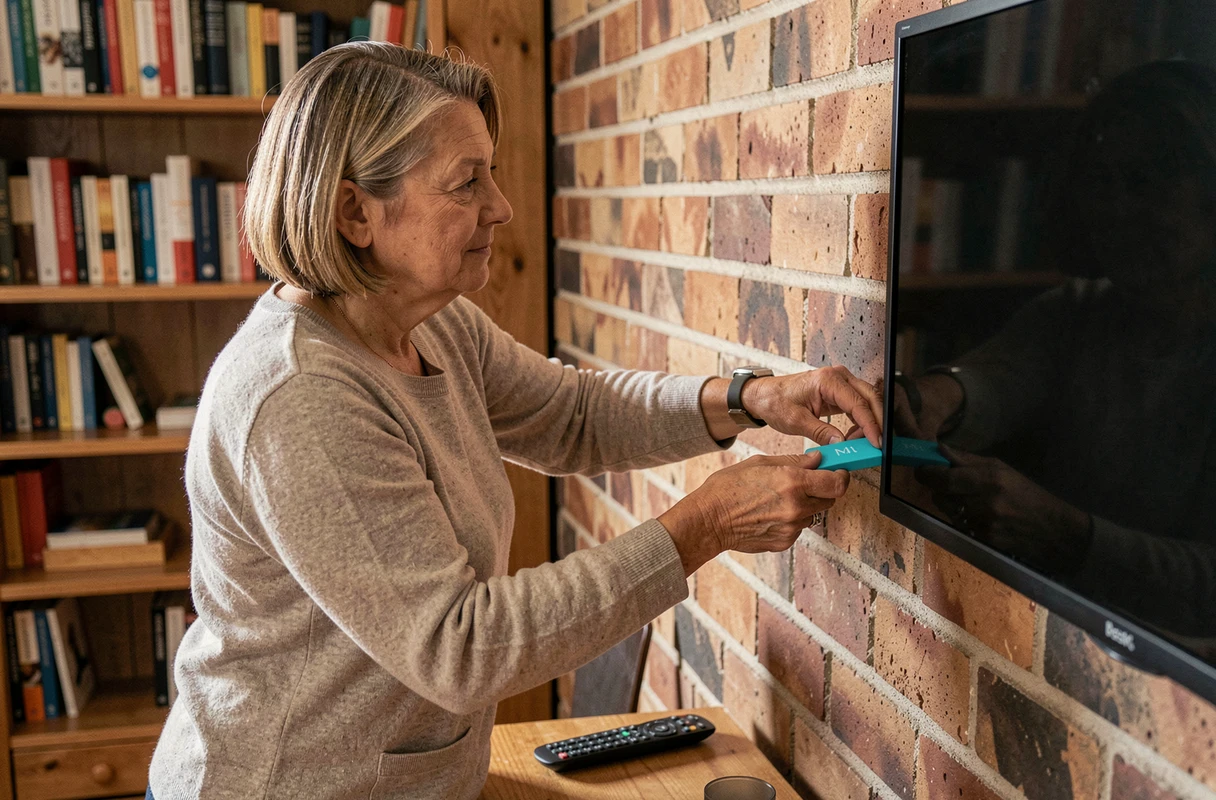
- Plug the Mi TV Stick into a free HDMI port on the television, then connect it to a USB power outlet.
- Select the corresponding HDMI source on your television, connect the stick to your Wi-Fi network, and link your Google account.
- Open the Google Play Store from the home screen, search for Molotov (or the application of your choice), and start the installation.
- Create an account on the application if necessary, then access live channels directly.
The whole process takes less than ten minutes with a stable Wi-Fi connection. The Bluetooth remote provided with the Mi TV Stick includes a Google Assistant button that makes voice searching for applications or programs easier.
Common Issues and Limitations to Know
Installation guides often stop at the step “launch the application.” In practice, several situations can complicate access to channels.
Unstable Wi-Fi Connection
The Mi TV Stick relies entirely on Wi-Fi. If your Internet router is far from the television, or if multiple devices share the bandwidth, the image may stutter or freeze. A Wi-Fi repeater or a connection via an Ethernet adapter (in USB OTG) can solve the problem.
Missing Channels on Molotov
Some DTT channels do not appear in the free version of Molotov. Others may temporarily disappear due to rights negotiations between Molotov and broadcasters. This is not a malfunction of the Mi TV Stick, but a limitation specific to the application.
Kodi as a Technical Alternative
For users comfortable with manual configuration, Kodi allows adding live TV stream sources via extensions. The application is available on the Google Play Store and works on Android TV. Setting it up takes more time than Molotov, but offers more flexibility in source selection.
- Kodi requires the manual addition of extensions (like PVR IPTV Simple Client) and the entry of a channel list in M3U format.
- The legality of the streams depends on their source: official streams from free channels are allowed, pirated streams are not.
- The Kodi interface is less intuitive than Molotov’s for family use.
DTT via Internet or DTT via Antenna: What the Mi TV Stick Changes
With the Mi TV Stick, you are not watching DTT in the technical sense of the term. You are watching the same programs, broadcast by the same channels, but transmitted via the Internet instead of terrestrial waves. The difference is transparent to the viewer in most cases.
This approach has a concrete advantage: no antenna or coaxial wall socket is needed. In an apartment without an antenna socket, or in a second home, the Mi TV Stick paired with an Internet connection is sufficient to access free channels.
The trade-off is the dependence on Internet speed. A live video stream continuously consumes bandwidth. If your connection is shared among multiple simultaneous uses (remote work, online gaming, downloads), the image quality may suffer. In this case, prioritizing the Mi TV Stick’s bandwidth in your router settings can improve stability.